 Homeling
Guide
Start your day with a morning report
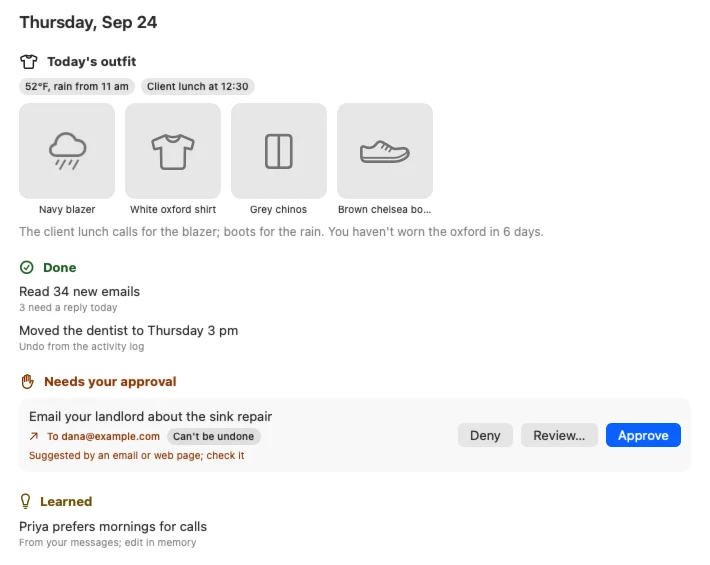
One page each morning: what Homeling got done overnight, what's waiting for your OK, and what to wear.
Set it up once
- Let Homeling work overnight. When you set Homeling up on a Mac that's plugged in, “Work overnight” is already on. You can change it any time in Settings → General. Homeling only does its overnight work between 1 and 6 am (you can change the hours), while your Mac is on power and you're not using it.
- Leave it running. Overnight work happens while Homeling is running. To let it work with its window closed, turn on “Keep working when the window is closed” in Settings → General.
- Open your report in the morning. Click Morning report in the sidebar, press ⌘1, or choose Morning report from Homeling's icon in the menu bar.

What's in it
- Today's outfit, picked from your closet for the weather and your calendar. See what to wear for today's weather to set that up.
- Done: what Homeling finished for you.
- Needs your approval: things waiting for a yes, like an email it wrote. You can approve, review or deny each one right there.
- Learned: things Homeling picked up, like a friend who prefers calls in the morning.
- Failed: anything that didn't work, with Retry where it can try again.
On a night with nothing to report, it simply says so.
Good to know
- Your report is ready whenever you open it. Homeling doesn't wake you up or send you anything.
- Anything that would send a message or an email waits in the report for your OK, unless you've told Homeling it doesn't need to ask.
- The outfit needs a few clothes in your closet. With the weather off, Homeling assumes a mild, dry day.
- In the Mac App Store version, Homeling works overnight only while it's open.